You spent time creating a
beautiful CSS animation — a smooth entrance effect, a satisfying hover
transition, a flowing loading spinner. But when you test it on a real device,
it stutters. It drops frames. It looks cheap instead of polished. This is one of
the most frustrating experiences in frontend development because the fix often
comes down to understanding how the browser renders your page.
This guide explains the
rendering pipeline, why some CSS properties cause jank while others do not, and
gives you concrete techniques to make your animations run at a smooth 60 frames
per second.
Understanding Why Some Animations Are Slow
The Browser Rendering Pipeline
When the browser renders a
page, it goes through several stages: JavaScript runs, then the browser calculates
Styles, then performs Layout (calculating element positions and sizes), then
Paint (filling in pixels), then Composite (layering everything together and
sending to the GPU). Animating properties that trigger Layout (like width,
height, top, left, margin) is expensive because the browser has to recalculate
the positions of potentially many elements with every frame. Animating
properties that only trigger Composite (like transform and opacity) is cheap
because the GPU handles it without involving the CPU-bound layout and paint
stages.
The Golden Rule: Only Animate Transform and Opacity
This is the single most
important principle in animation performance. Instead of animating top or left
to move an element, use transform: translate(). Instead of animating width or
height to resize, use transform: scale(). Instead of animating background-color
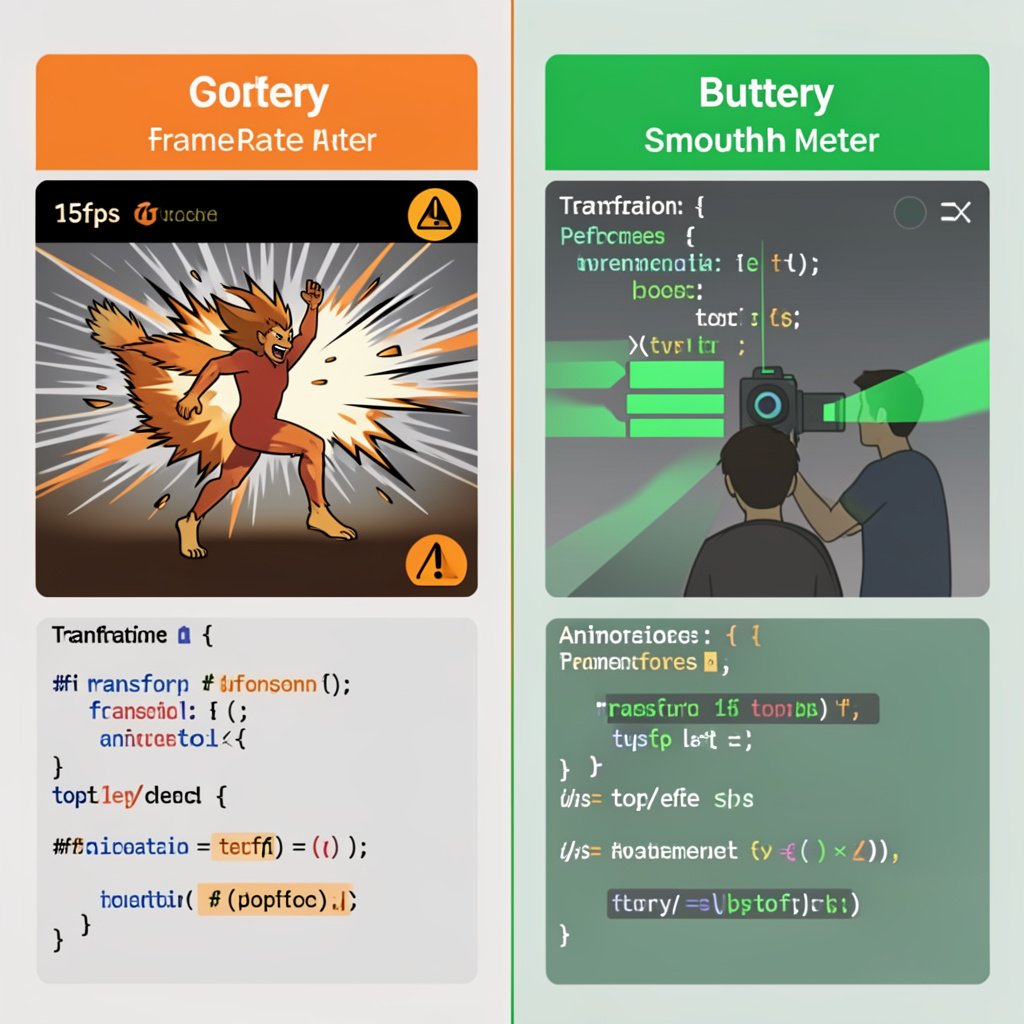
for fade effects, use opacity. CSS transforms and opacity changes are handled
by the GPU's compositor layer and do not trigger layout or paint
recalculations. Every other animatable CSS property — margin, padding, width,
height, border, font-size, top, left — causes at minimum a repaint, and most
cause a full layout recalculation. Checking whether a property causes layout
can be done at csstriggers.com.
GPU Acceleration: How to Enable It
The will-change Property
The will-change CSS
property is a hint to the browser that a particular property is about to be
animated, allowing it to set up optimizations in advance (usually creating a
separate compositor layer for that element). Usage: will-change: transform or
will-change: opacity. Add will-change on the element before animation starts —
often in a :hover state or when a class is added via JavaScript. Important
caveats: Do not apply will-change to everything — it consumes GPU memory. Only
use it on elements you are actually about to animate. Remove it after the
animation ends using JavaScript.
The translateZ(0) Hack
Adding transform:
translateZ(0) or transform: translate3d(0,0,0) to an element forces the browser
to promote it to its own GPU layer. This is an older technique that predates
will-change and still works reliably. It is particularly useful for fixing
flickering animations in Safari. Apply it sparingly — too many GPU layers
consume memory and can actually hurt performance.
Avoiding Layout Thrashing in JavaScript Animations
Layout thrashing occurs
when JavaScript reads and writes DOM properties in an interleaved pattern,
forcing the browser to recalculate layout multiple times per frame. For
example: reading element.offsetHeight then changing element.style.height, then
reading offsetHeight again — each read after a write forces a layout
recalculation. The fix: batch all DOM reads together, then batch all DOM writes
together. Use requestAnimationFrame to schedule DOM writes in sync with the
browser's rendering cycle. Libraries like FastDOM make this pattern easier to
implement.
Use requestAnimationFrame for JavaScript Animations
If you need to drive
animations with JavaScript (not just CSS), use requestAnimationFrame() instead
of setInterval() or setTimeout(). requestAnimationFrame runs your callback
synchronized with the browser's refresh rate (typically 60 times per second),
ensuring your animation runs as smoothly as possible. setInterval and
setTimeout are not synchronized with the browser's paint cycle and will cause
jank.
Debugging Animation Performance in DevTools
Chrome DevTools Performance Tab
Open DevTools (F12) →
Performance tab → click Record → perform the animation → stop recording. You
get a flame chart showing exactly what the browser did on each frame. Look for
long purple (Layout) or green (Paint) blocks — these indicate expensive
operations happening during your animation. Frames that take longer than 16ms
(the budget for 60fps) are shown in red.
Rendering Tab
In DevTools, click the
three-dot menu → More Tools → Rendering. Enable Paint Flashing to see a green
overlay wherever the browser repaints during your animation. Enable Layer
Borders to see which elements have their own compositor layers. This visual
feedback shows you exactly which parts of your animation are expensive.
Common Animation Performance Mistakes
Animating box-shadow —
this is expensive to paint. Use a transparent element with a visible box-shadow
underneath and animate opacity instead. Animating filter — blur() and other
filters trigger repaint. Contain expensive filters to small, isolated elements.
Too many simultaneous animations — each animation that triggers layout or paint
compounds. Audit how many animations run at the same time. Animating large
background images — this causes large paint operations. Consider alternative
approaches or contain the animation to a smaller element.
Testing on Real Devices
Your powerful developer
machine with a dedicated GPU will make almost any animation look smooth. Real
users on budget phones with limited GPU resources will see the jank. Always
test animations on a mid-range or budget mobile device. Android's Developer
Options includes a 'Force 4x MSAA' option and GPU rendering profiling that can
help identify animation performance issues on real hardware.
Conclusion
Smooth web animations come
down to working with the browser's rendering pipeline rather than against it.
Animate only transform and opacity for maximum performance. Use will-change to
hint at upcoming animations. Avoid layout-triggering properties in your
animations. Debug with DevTools' Performance and Rendering panels to see
exactly what is happening. Follow these principles and your animations will
feel like high-quality native apps rather than sluggish web pages.