You activate a new plugin
and suddenly your homepage is broken. Or you run a batch update and half your
site stops working. Plugin conflicts are the most common reason WordPress sites
break, and they are responsible for a significant portion of the white screens,
PHP errors, and layout disasters that WordPress users experience daily.
The good news: plugin
conflicts follow a predictable pattern and can be diagnosed systematically.
This guide gives you a proven process to identify the conflicting plugin
without taking your live site offline and causing more damage.
What Causes Plugin Conflicts?
WordPress plugins are
independent pieces of software that sometimes interact in unexpected ways.
Conflicts occur when two plugins define a function or class with the same name
(fatal error), two plugins try to modify the same data in incompatible ways, a
plugin conflicts with your active theme's code, a plugin is not compatible with
the current PHP version, or a plugin is not compatible with the current version
of WordPress or WooCommerce.
First: Create a Backup
Before doing any
troubleshooting, create a full backup of your site. If things go wrong during
debugging, you want to be able to restore to the current state. Use UpdraftPlus
to create a backup to Google Drive or Dropbox in under five minutes. This is non-negotiable.
Step 1: Use a Staging Environment
If you have access to a
staging environment (many managed hosts provide this — WP Engine, Kinsta,
SiteGround), clone your production site there and do all your debugging in
staging. This way, your live site remains untouched. WordPress.com, Cloudways,
and others have one-click staging features. If you do not have staging, do your
testing during your lowest-traffic hours to minimize impact.
Step 2: Enable WordPress Debug Mode
Instead of a blank white
screen, debug mode shows you the actual PHP error that is causing the problem.
Open wp-config.php in your hosting File Manager and find this line:
define('WP_DEBUG', false); Change it to: define('WP_DEBUG', true);
define('WP_DEBUG_LOG', true); define('WP_DEBUG_DISPLAY', false); The last two
lines log errors to wp-content/debug.log instead of displaying them to
visitors. After enabling this, visit your broken page and then check debug.log
— the error message will tell you exactly which file and plugin is causing the
problem.
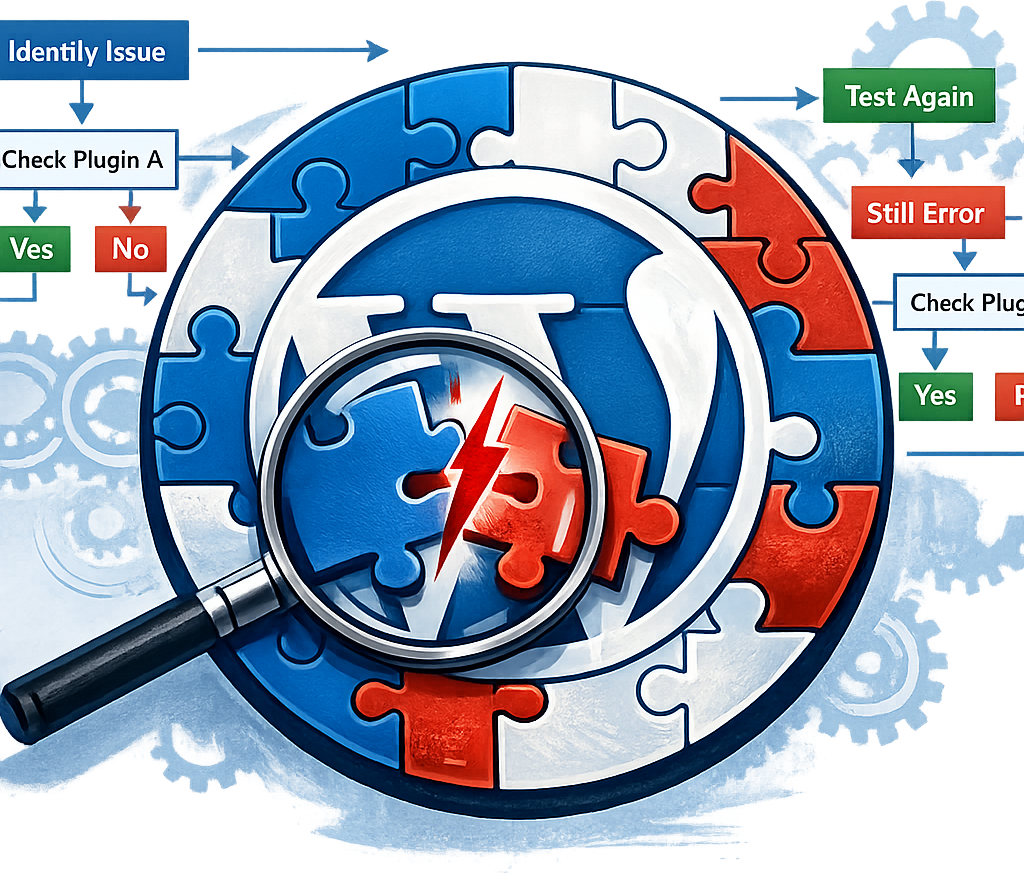
Step 3: The Binary Search Method to Find the Culprit Plugin
The most systematic way to
find a conflicting plugin. Deactivate all plugins except the one you need to
test. Check if the problem is resolved. If yes, the problem was in the
deactivated plugins. Reactivate plugins in batches of half. Check after each batch.
When the problem returns, the culprit is in the last batch you activated. Halve
that batch and test again. Continue until you have isolated the single
problematic plugin. This logarithmic approach finds the conflict much faster
than testing plugins one at a time.
Step 4: Deactivating Plugins Without Admin Access
If your wp-admin is
inaccessible (a plugin caused a fatal error that broke the admin too),
deactivate plugins via File Manager. Navigate to wp-content/plugins/ in your
hosting File Manager. Rename the folder of the suspected plugin (e.g., rename
'woocommerce' to 'woocommerce_disabled'). WordPress will deactivate it
automatically because it cannot find the folder. Reload your site. If it loads,
the renamed plugin was the culprit. Rename it back and look for an update or a
fix.
Step 5: Check for Theme Conflicts
Sometimes the conflict is
not between two plugins but between a plugin and your active theme. Switch to a
default WordPress theme (TwentyTwenty-Four) temporarily. If the issue
disappears, the conflict is between your theme and the plugin. Check if there is
an update to either the theme or the plugin. Contact the theme developer with
the specific error message from debug.log.
Step 6: Check Plugin Compatibility
Every plugin's page on
WordPress.org shows 'Tested up to' — the highest WordPress version it has been
tested with. If this is significantly older than your WordPress version, there
may be compatibility issues. Check the plugin's changelog and support forum for
reports of issues with your current WordPress version. If the plugin is
abandoned (no updates in 2+ years), consider replacing it with a maintained
alternative.
Tools to Help With Diagnosis
Health Check and
Troubleshooting Plugin: This official WordPress plugin adds a 'Troubleshooting
Mode' to your site, which lets you deactivate all plugins and switch themes for
your browser session only — your visitors continue to see the normal site. This
is the safest way to diagnose plugin conflicts on a live production site. WP
Debug Bar: Adds a debug bar to your admin showing PHP warnings and errors in
real time. Query Monitor: Shows database queries, hooks, conditionals, and
errors — excellent for performance and conflict diagnosis.
Preventing Plugin Conflicts
Update plugins one at a
time, not all at once. This makes it easy to identify which update caused an
issue. Test plugin updates on a staging site before applying to production.
Read the changelog before updating — major version updates often include breaking
changes. Avoid installing multiple plugins that do the same thing (e.g., two
SEO plugins, two caching plugins). Keep your plugin count as low as possible.
Every plugin is a potential conflict vector.
Conclusion
Plugin conflicts are
inevitable in a WordPress ecosystem with over 60,000 plugins, but they are not
mysterious. Enable debug logging to get the exact error message, use the Health
Check plugin to test safely without affecting visitors, and use the binary
search method to isolate the conflicting plugin quickly. Most conflicts can be
resolved in under 30 minutes with this systematic approach.