File compression is one of those
tools you use constantly but rarely think about. Zipping files before emailing,
extracting an installer you downloaded, creating an archive of a project backup
— compression touches virtually every aspect of digital file management.
The question most Windows users
never ask is whether they are using the best tool for the job. The answer
almost certainly involves switching from WinRAR or WinZip to a better
alternative. Here is everything you need to know about file compression
software in 2026.
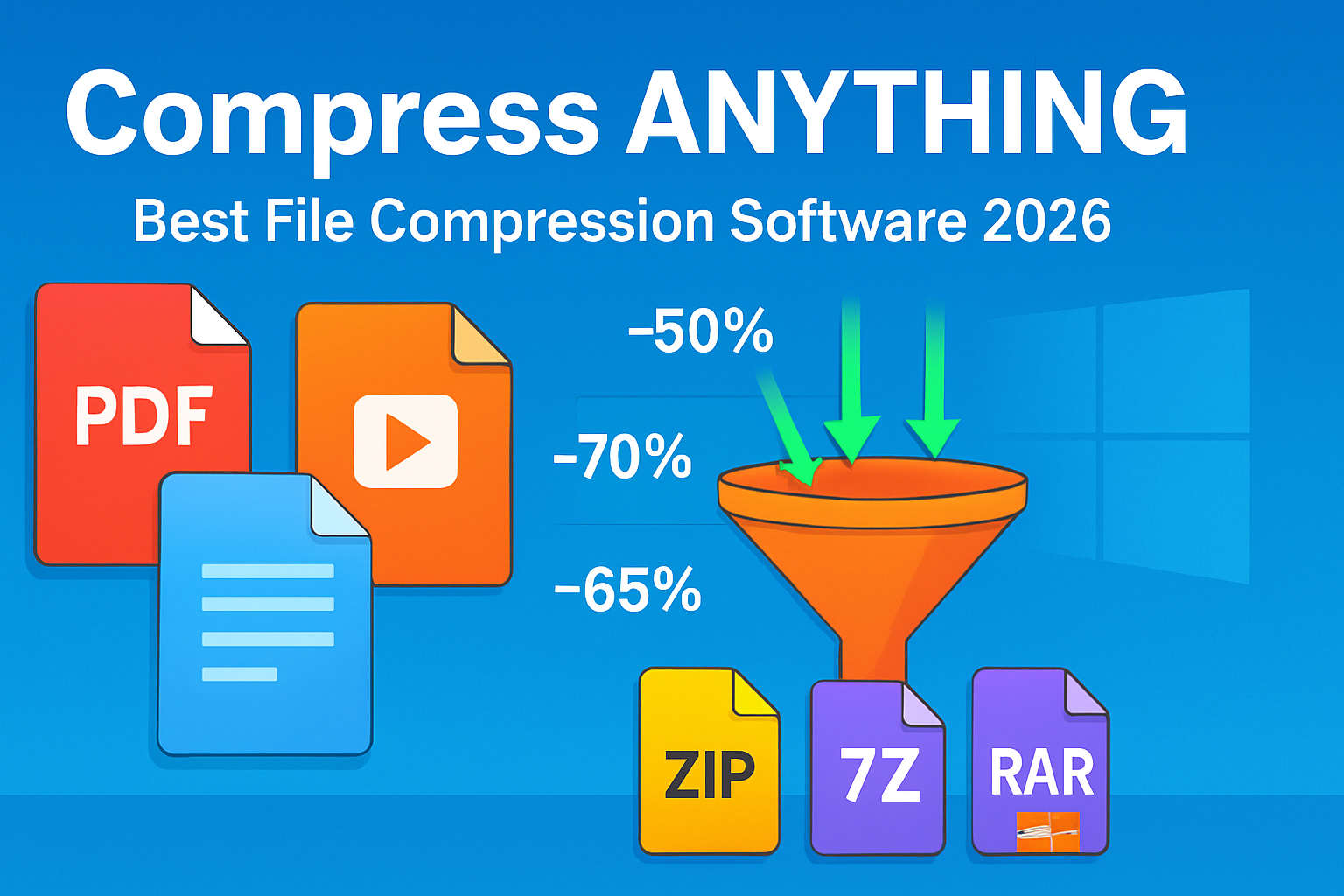
Understanding Compression Formats: ZIP vs 7Z vs RAR
ZIP
ZIP is the universal format —
supported natively by Windows, Mac, and Linux without any third-party software.
It is the right format when sharing archives with people who may not have
compression software installed. Compression ratios are modest compared to newer
formats.
7Z (7-Zip format)
The 7Z format from 7-Zip
typically achieves 30–70% better compression than ZIP on the same files. The
trade-off is that recipients need 7-Zip or compatible software to extract it
(though this is free and widely available). Best for archiving your own files
to save maximum storage space.
RAR
RAR is a proprietary format
owned by RARLAB. It offers solid compression and has recovery record
functionality (can repair slightly corrupted archives). The main disadvantage
is that creating RAR archives requires WinRAR or a licensed tool. Extracting
RAR files is possible with free tools (7-Zip extracts RAR).
1. 7-Zip — Best File Compression Software Overall
Platform: Windows, Mac, Linux
(free, open-source)
7-Zip is the clear winner in
file compression software and has been for over 20 years. It is completely
free, open-source, and consistently produces the smallest archive sizes of any
compression tool.
Key Features
•
Creates 7Z, ZIP, TAR, GZIP, BZIP2, and XZ archives
•
Extracts: 7Z, ZIP, RAR, ISO, CAB, MSI, DMG, and 40+
other formats
•
Achieves 30–70% better compression than traditional ZIP
•
AES-256 encryption for protecting archives with
passwords
•
Split archive creation for spanning large files across
multiple volumes
•
Command-line version for scripting and automation
•
Context menu integration: right-click any file to
compress instantly
•
Extremely small installation footprint (under 2MB)
7-Zip's interface is dated (it
has not had a major visual overhaul since Windows XP), but function is flawless.
For maximum compression, choose LZMA2 Ultra compression level for 7Z format —
this takes longer but produces the smallest possible archive.
2. NanaZip — Best Modern 7-Zip Fork
Platform: Windows (free,
open-source)
NanaZip is a community fork of
7-Zip with the same powerful compression engine but a modern Windows 11-style
interface. It includes all of 7-Zip's capabilities plus:
•
Modern Fluent Design interface that fits Windows 11
aesthetics
•
Per-file hashing (MD5, SHA-256, Blake2) from context
menu
•
Windows 11 context menu integration (right-click works
correctly)
•
Available on Microsoft Store
If you want 7-Zip's power with a
contemporary interface, NanaZip is the best choice.
3. WinRAR — Still Useful for RAR Creation
Platform: Windows, Mac, Linux
($29 for registered version, unlimited free trial)
WinRAR is famous for its
never-ending 40-day free trial that technically never expires. For most users,
WinRAR's main purpose is creating RAR archives — something 7-Zip cannot do
(7-Zip can extract RAR but not create it). RAR archives support Recovery
Records that can repair partially corrupted downloads.
For casual users, WinRAR's
perpetual free trial means it is functionally free. For organizations,
licensing should be purchased. In practice, for most compression tasks, 7-Zip
produces equal or better results.
4. PeaZip — Best Feature-Rich Free Archive Manager
Platform: Windows, Mac, Linux
(free, open-source)
PeaZip is an open-source archive
manager with a comprehensive feature set that exceeds 7-Zip's GUI capabilities:
•
Supports 200+ archive formats for extraction
•
Creates ZIP, 7Z, ARC, Brotli, GZip, TAR, Zstd, and more
•
Integrated archive converter (convert between formats)
•
Built-in file manager
•
Secure delete for sensitive file deletion
•
Multi-volume split archives
•
Portable version available
PeaZip is the best choice for
users who want a fully-featured graphical archive manager beyond 7-Zip's
functional-but-basic interface.
5. Bandizip — Best Lightweight All-Format Extractor
Platform: Windows, Mac (free)
Bandizip offers fast extraction
from all major formats, automatic encoding detection for non-UTF-8 filenames
(critical for archives from East Asian systems), and a preview feature that
shows archive contents without full extraction.
It handles corrupted archives
more gracefully than most tools and is particularly popular in East Asia where
encoding compatibility is important.
How to Get Maximum Compression with 7-Zip
1. Right-click
the file or folder you want to compress
2. Select
7-Zip > Add to Archive
3. Change
Archive Format to 7z
4. Set
Compression Level to Ultra
5. Set
Compression Method to LZMA2
6. Set
Dictionary Size to 64 MB or 256 MB (higher = better compression, needs more RAM)
7. Set
Word Size to 273
8. Optionally
enter a password for AES-256 encryption
9. Click
OK — compression time increases significantly for Ultra but produces the
smallest archive
When to Use Each Format
•
Sharing with anyone → ZIP (universally extractable
without software)
•
Archiving your own files to save space → 7Z with LZMA2
Ultra
•
Sending large multi-part downloads → RAR with Recovery
Records
•
Linux/Mac compatibility → TAR.GZ or TAR.BZ2
Conclusion
7-Zip is the definitive answer
for file compression software in 2024 — free, open-source, more powerful than
the paid alternatives, and the first tool you should install on any new Windows
machine. NanaZip is the better choice if you want the same engine with a modern
interface. PeaZip is worth considering if you want a more feature-complete GUI
experience. Download 7-Zip today and uninstall WinZip — there is absolutely no
reason to pay for compression software when 7-Zip exists.
Category:
Software Reviews
Tags:
best file compression software, 7-Zip vs WinRAR, NanaZip review,
free zip software Windows, PeaZip review