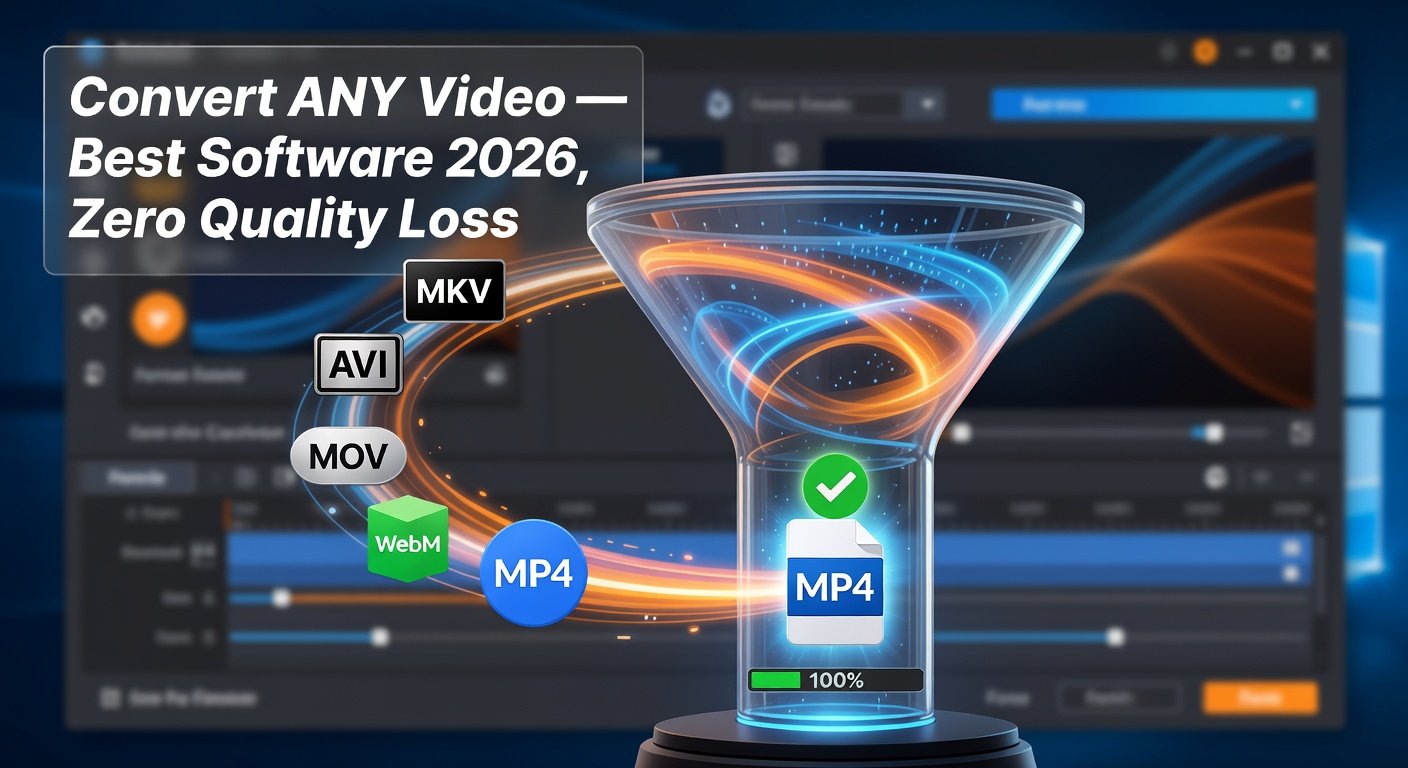
Video format incompatibility is
a surprisingly common problem. An MKV file that refuses to play on your Smart
TV. A MOV from iPhone that will not open in Windows Movie Maker. A 15GB video
you need to compress for email attachment. A client who only accepts MP4 while
you shot in ProRes. Video converter software solves all of these instantly.
The key considerations in a
video converter are: whether it preserves quality during conversion, how fast
it processes files, and whether it costs anything. Here are the best options in
2026.
Understanding Video Conversion: Quality and Compression
Every time a video is transcoded
(re-encoded) to a different format, some quality is potentially lost —
especially if you are converting between lossy formats. To minimize quality
loss:
•
Convert from a high-quality source (original file, not
a previously compressed copy)
•
Use a high-quality setting or low Constant Rate Factor
(CRF) in the output
•
Choose modern codecs: H.264, H.265/HEVC, AV1 deliver
better quality at smaller file sizes than older codecs
Container remuxing (changing the
container without re-encoding) causes zero quality loss. For example, moving
H.264 video from MKV to MP4 container without re-encoding is lossless.
1. HandBrake — Best Free Video Converter Overall
Platform: Windows, Mac, Linux
(free, open-source)
HandBrake is the most trusted
free video converter available, used by professionals and home users alike for
over 15 years. It handles virtually every input format and converts to MP4 and
MKV outputs with fine-grained control over quality settings.
Key Features
•
Supports almost any video input format via built-in
decoders
•
H.264, H.265/HEVC, AV1, VP9, and more output codecs
•
Constant Quality mode (CRF) for optimal
quality-to-file-size balance
•
Preset system: presets for Apple devices, Android, web,
general use
•
Batch conversion (queuing multiple files)
•
Video filters: deinterlace, detelecine, noise
reduction, sharpen
•
Subtitle and audio track selection and management
•
Hardware acceleration: NVENC (Nvidia), QuickSync
(Intel), AMF (AMD)
HandBrake's slight learning
curve is justified by the control it gives you. For anyone who needs to
compress videos for storage or streaming, the H.265 preset produces files
roughly 50% smaller than H.264 at equivalent visual quality.
2. VLC Media Player — Best for Quick Container Remux
Platform: Windows, Mac, Linux
(free)
VLC is primarily a media player,
but its built-in conversion feature is perfect for quick remux operations —
changing the container format without re-encoding. This is the fastest and
quality-preserving way to, for example, convert an MKV file to MP4.
1. VLC
> Media > Convert/Save
2. Add
your source file
3. Click
Convert/Save
4. Choose
a profile and destination
5. Click
Start
For simple conversions without
quality adjustment, VLC is the fastest tool available. For anything involving
compression or quality adjustment, HandBrake is more appropriate.
3. Freemake Video Converter — Best for Beginners
Platform: Windows (free with
limitations)
Freemake Video Converter offers
the most beginner-friendly interface of any video converter. Its large buttons,
preset-based workflow, and visual output selector make conversion
straightforward for non-technical users.
It supports 500+ formats and
includes presets for specific devices (iPhone, Apple TV, Android tablets,
PlayStation, etc.). The free version adds a Freemake watermark to outputs,
removable with a paid subscription.
4. FFmpeg — Best Command-Line Tool for Technical Users
Platform: Windows, Mac, Linux
(free, open-source)
FFmpeg is the foundation that
most other video tools are built on. HandBrake uses FFmpeg. VLC uses FFmpeg. It
is the most powerful video processing tool available, capable of handling
virtually any video operation imaginable.
FFmpeg operates via command
line, which is a barrier for non-technical users but gives absolute control to
developers and power users:
Basic conversion example: ffmpeg
-i input.mkv -c copy output.mp4
This remuxes MKV to MP4
losslessly in seconds. More complex operations like adding subtitles, changing
audio tracks, trimming, and concatenating are all possible with the right
command arguments.
5. Any Video Converter Free — Best for Converting to Multiple Devices
Platform: Windows, Mac
Any Video Converter Free
provides conversion presets specifically optimized for a wide range of devices:
iPhone, iPad, Apple TV, Samsung Galaxy, Kindle Fire, gaming consoles, and more.
If your primary need is converting video for a specific device, these presets
remove the guesswork about resolution, bitrate, and codec settings.
6. Shutter Encoder — Best Professional Free Tool
Platform: Windows, Mac, Linux
(free)
Shutter Encoder is less
well-known but extraordinarily capable — a professional-grade tool that
supports an enormous range of codecs including ProRes, DNxHD, OpenEXR
sequences, and advanced audio formats. It is the preferred tool of video
editors and post-production professionals who need a free tool for format
conversion in professional workflows.
HandBrake Quick Guide: Compress a Video for Sharing
6. Open
HandBrake and drag your video file onto the window
7. Select
a preset: for web sharing, choose 'Fast 1080p30' or 'HQ 1080p30 Surround'
8. Click
Browse to choose where to save the output
9. Change
Format to MP4 if not already selected
10. Click Add
to Queue, then Start Queue
11. For even
smaller files, change Video Codec to H.265 (HEVC) before starting
Conclusion
HandBrake is the best free video
converter for most users — powerful, trusted, and completely free without
watermarks. VLC handles quick remux operations in seconds. For professional
formats, Shutter Encoder is the go-to free tool. Avoid any video converter that
adds watermarks to the free version for personal use — both HandBrake and
Shutter Encoder provide professional results without cost.
Category:
Software Reviews
Tags:
best video converter software, HandBrake review, FFmpeg guide, free
video converter no watermark