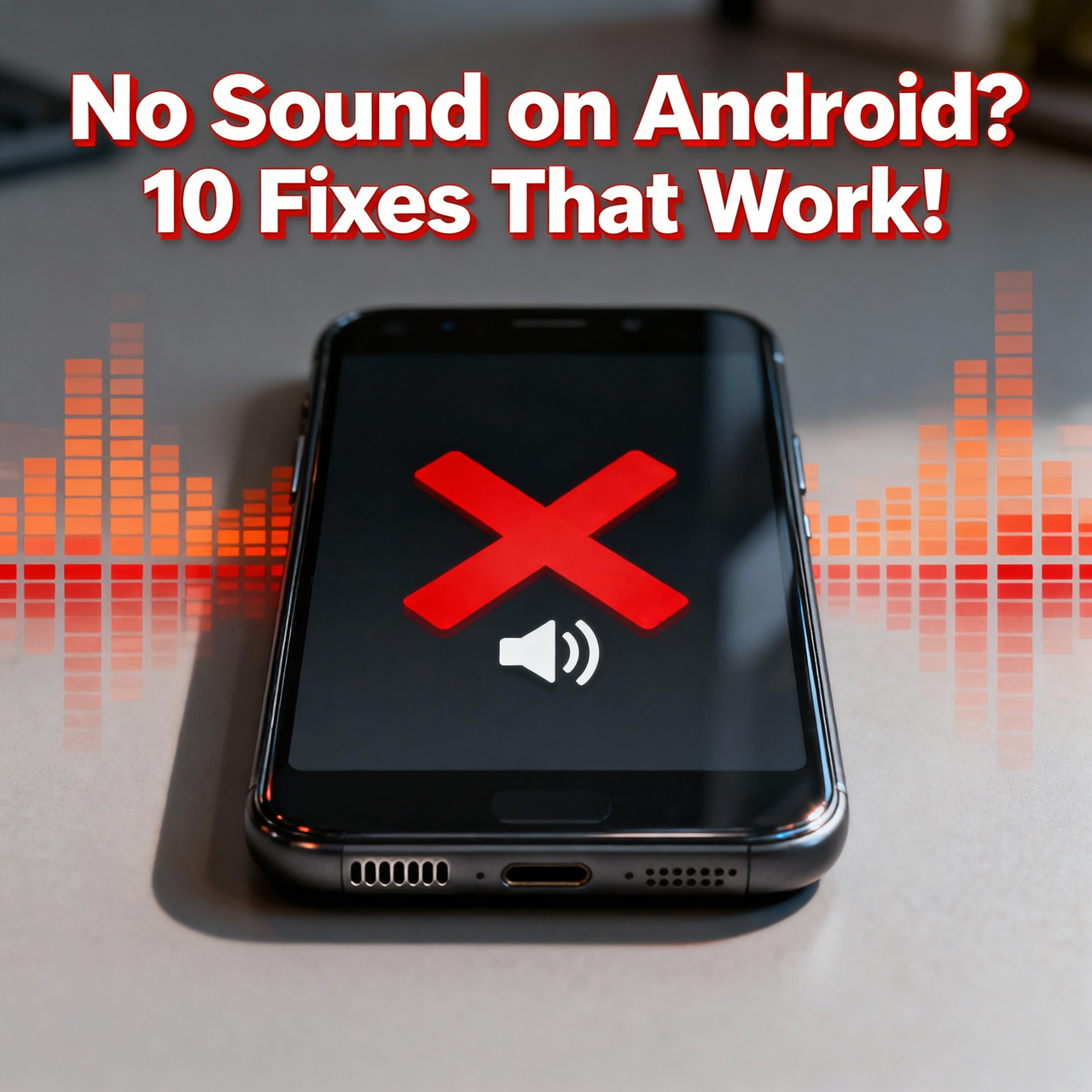
When your Android phone's
speaker stops working or produces only a faint whisper, it can be deeply
disorienting. No ringtones, no speakerphone, no media sound — just silence.
This problem can arise from a software glitch, a settings issue, or physical debris
blocking the speaker grille.
Before assuming you need a repair, work through these 10 fixes. The majority of Android speaker problems are software or settings-related and can be resolved in min
Quick Checks Before Troubleshooting
•
Is the volume turned all the way up? Use the physical
volume buttons
•
Is the phone in Silent or Vibrate mode? Check the
notification shade
•
Is a Bluetooth device connected and playing audio?
Disconnect it first
•
Is the phone in Do Not Disturb mode? Check Settings
> Sound > Do Not Disturb
10 Fixes for Android Speaker Problems
Fix 1: Check All Volume Settings
Android has separate volume
controls for ringtones, media, notifications, and alarms. Pressing the volume
button during media playback adjusts media volume. You might have the right
volume type muted while others are normal.
1. Press
the volume button once
2. Tap
the small arrow/expand icon to show all volume sliders
3. Check
Media, Call, Ring, and Alarm volumes
4. Raise
all of them to test
Fix 2: Disable Do Not Disturb
Do Not Disturb silences nearly
all sounds. Swipe down the notification panel, check if Do Not Disturb is
active, and turn it off. Also check: Settings > Sound > Do Not Disturb
and ensure it is not on a schedule.
Fix 3: Unplug Headphones and Disable Headphone Mode
Sometimes Android gets stuck in
headphone mode — it behaves as if headphones are plugged in (routing audio to
the "headphones") even when nothing is connected. This happens due to
debris in the headphone jack or a software glitch.
5. Plug
and unplug headphones multiple times rapidly
6. Clean
the headphone jack with a soft toothpick or dry cotton swab
7. If
you have a device with no headphone jack, clean the USB-C port with compressed
air
If stuck in headphone mode
persists, download "Disable Headphone" or "SoundAbout" from
the Play Store — these apps can force audio to the phone speaker.
Fix 4: Clean the Speaker Grille
Lint, dust, and pocket debris
accumulate in speaker grilles and muffle or completely block sound. Clean it
carefully:
8. Use
a soft-bristle brush (an old clean toothbrush works well)
9. Gently
brush the speaker grille to loosen debris
10. Use a short
burst of compressed air to blow out loosened particles
11. Avoid
poking objects into the grille as this can damage speaker mesh
Fix 5: Restart Your Phone
A software glitch can cause the
audio stack to crash, routing sound nowhere. A simple restart often resolves
this instantly.
Fix 6: Test in Safe Mode
A third-party app (such as a
custom music player or audio equalizer app) can hijack audio routing.
12. Hold the
Power button > long-press Power Off until Safe Mode appears > tap OK
13. In Safe
Mode, play a video or music
14. If audio
works in Safe Mode, a recently installed app is the cause
15. Boot
normally and uninstall recently added audio apps
Fix 7: Check Accessibility Settings
Some accessibility features
(mono audio, audio balance) can cause sound to appear absent when it is routing
incorrectly.
16. Settings
> Accessibility > Hearing Enhancements (or similar)
17. Check audio
balance — make sure the slider is centered
18. Disable
Mono Audio and try again
Fix 8: Clear Cache of Media and Sound Services
19. Settings
> Apps > See All Apps > Show System Apps
20. Find Media
Storage and clear its cache and data
21. Find
AudioFX or similar system audio apps and clear their cache
22. Restart
your phone
Fix 9: Check for Software Updates
Audio driver bugs introduced by
an OS update are occasionally the cause of sudden sound failures. Check
Settings > System > Software Update for patches.
Fix 10: Factory Reset
If every software fix has
failed, a factory reset removes all accumulated system issues. Back up your
data and reset via Settings > General Management > Reset > Factory
Data Reset.
When the Problem Is Hardware
If the speaker is still silent
after all fixes, the speaker may be physically damaged. Common causes:
•
Water damage — even brief moisture exposure can
permanently damage speakers
•
Drop damage — internal speaker ribbon cables can
disconnect
•
Aging speaker — after 3+ years, speaker membranes can
fail
Speaker replacement costs
$20–$60 at most authorized service centers or third-party repair shops.
Conclusion
The majority of Android speaker
problems are caused by stuck headphone mode, debris blockage, software
glitches, or incorrect volume settings — all of which are fixable at home. Work
through the fixes systematically starting from the quickest (volume checks) to
the most comprehensive (factory reset). Physical speaker repair is only
necessary for a minority of cases.
Category:
Mobile Apps
Tags:
Android speaker not working, no sound Android fix, stuck headphone
mode Android, Android audio problem